How to Add Online Booking to Your Website (Without Code)
By Sam Codes · · 6 min read
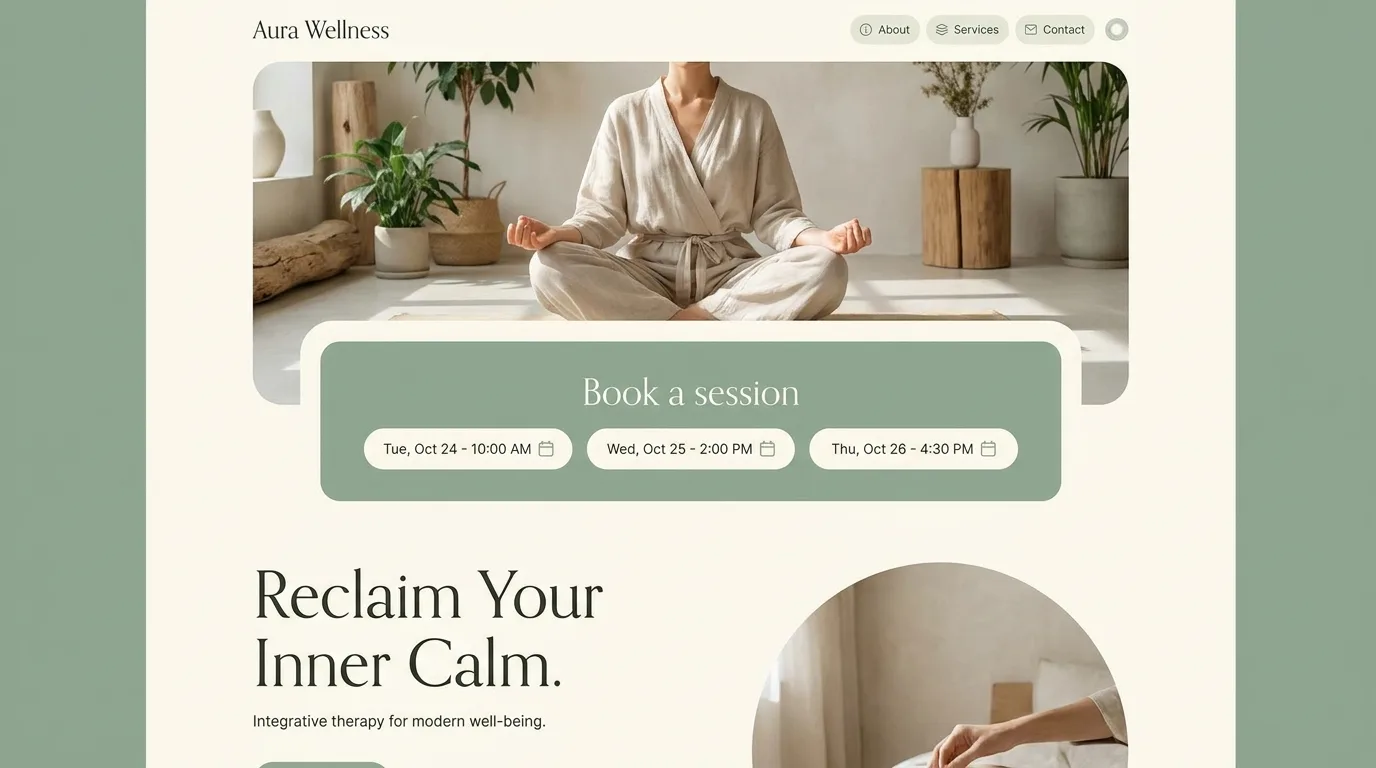
For any business that runs on appointments, a coach, a therapist, a salon, a consultant, the booking step is where a website earns its keep. Every bit of friction between "interested" and "booked" costs you clients. The businesses that win are the ones where booking takes ten seconds and does not involve emailing back and forth about times.
This guide covers what a good online booking flow needs, where appointments actually go, how to cut down on no-shows, and how to add booking to your site without code.
What a good booking flow needs
A good booking flow does one thing well: it lets someone pick a time and confirm, fast. The fewer steps, the more bookings. Show your real availability, let people choose a slot, collect just enough detail to prepare, and confirm immediately.
The mistake most businesses make is treating booking like a form to fill out. It should feel like picking a time, not filling in paperwork.
- Show your real availability so people book a time that actually works
- Keep the details minimal: name, email, and the service or reason
- Confirm the booking on-screen and by email straight away
- Offer it prominently, not buried on a single page
- Make it work on a phone, most bookings happen there
Where do bookings actually go?
Like a contact form, a booking widget needs something behind it. When someone books, the appointment has to land somewhere you will see it, and ideally sync with your calendar so you do not double-book. There are three common setups.
Your inbox and calendar
The common setup: a confirmation email to you and the client, plus an event added to your calendar. This is enough for most solo businesses.
A booking dashboard
Some tools also give you a list of upcoming appointments you can log into, useful as your volume grows and your inbox is not enough.
A dedicated scheduling tool
Standalone schedulers (Calendly, TidyCal, and similar) handle availability and reminders and can be embedded into your site. A fine option if you want a separate booking system to manage.
Cut down on no-shows
No-shows are the tax on free bookings. Two things reduce them the most: automatic reminders and, for higher-value appointments, a deposit or card on file. A friendly reminder the day before recovers a surprising number of would-be no-shows.
The other quiet fix is easy rescheduling. People who can move an appointment in one tap are far less likely to simply not turn up.
- Send an automatic confirmation immediately, and a reminder the day before
- Make rescheduling easy, people who can reschedule are less likely to vanish
- For higher-value slots, consider a deposit or a card on file
- State your cancellation policy clearly at the point of booking
Where to put your booking button
Booking should be reachable from everywhere, not hidden on a single "Book" page. Put a clear booking button in your top navigation, repeat it at the end of your homepage and services pages, and make it the obvious next step after someone reads what you offer.
- A "Book" or "Book a call" button in the top navigation
- A booking call-to-action at the end of your homepage and services
- A booking link on your about page, after you have built trust
- One clear primary action, do not compete it with five other buttons
How to add booking without code
You do not need to wire up a calendar, availability logic, and confirmation emails by hand. The old way was a scheduling plugin or an embedded third-party widget. The faster way is to describe it, "add a booking section where clients can pick a time for a 30-minute consultation," and have it built and connected in one step.
How Looops adds booking for you
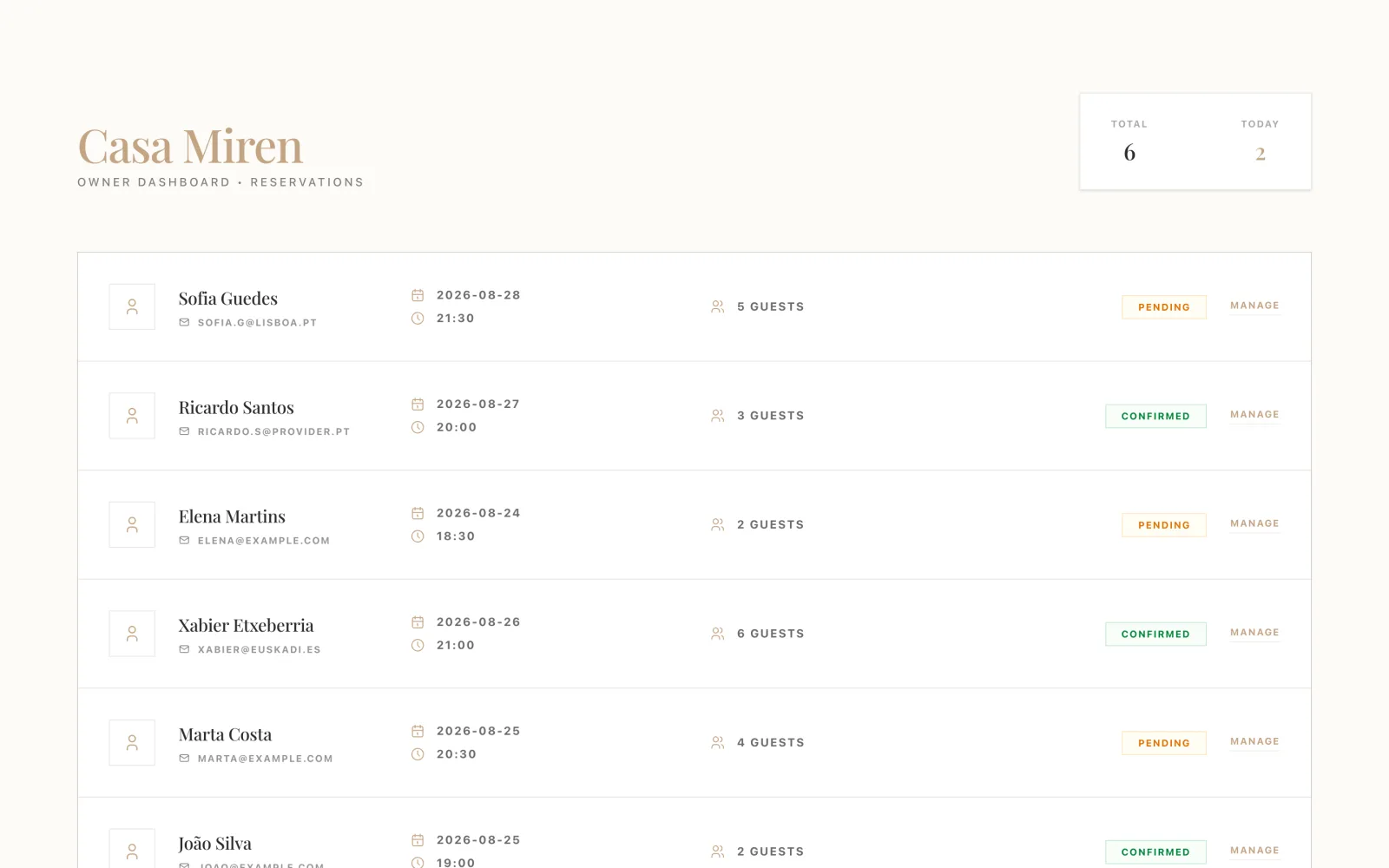
Looops is an AI website builder you chat with. Ask for a booking or reservation system and it builds one into the site itself, with a real database behind it: bookings are stored with your site, not in a third-party widget's account, and you see them in a private owner area built for you. You refine it by talking: "only offer weekday mornings," "add a party-size field," "mark reservations as pending until I confirm."
Here is a real one: a restaurant site asked for table reservations and got a booking flow on the site plus this owner dashboard, pending and confirmed states included. The same works for appointments, classes, or consultations.
- A booking flow that matches your site, not a bolted-on widget
- Bookings stored in your site's own database, with a private owner area
- Appointments and confirmations reach you automatically
- Adjust availability, fields, and reminders by describing them
- Works cleanly on phones, where most bookings happen
- Booking systems with a database come with the Personal and Pro plans
Add booking to your site
Describe your booking flow and Looops builds it, appointments in your calendar from day one.
Free plan available, no card required
Frequently Asked
Questions.
Keep reading
Ready to build your website?
Describe what you want and Looops builds it. Free to start, no card required.
Start building free