Your Google Business Profile Website Is Gone. What Now?
By Sam Codes · · 8 min read
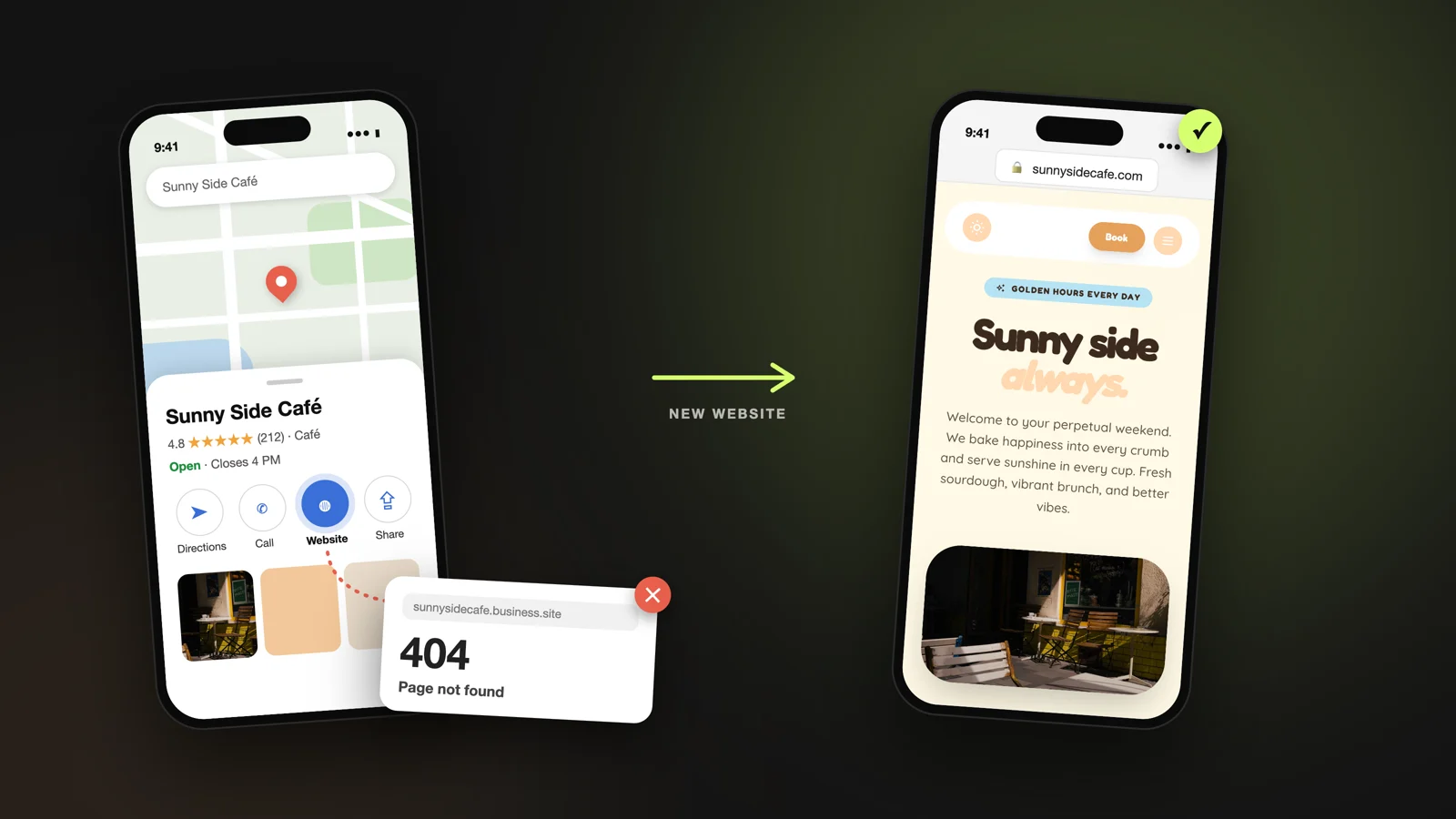
Short answer: Google turned off the free websites it made from Business Profiles on March 1, 2024. Until June 10, 2024, visitors to those sites were sent to the Business Profile instead. Since then, any address ending in business.site or negocio.site shows a "page not found" error. Your Business Profile itself still works and is still free. Only the website is gone, so you need a new one from somewhere else and the new address on your profile.
Many owners never heard about it. The profile keeps showing a Website button, customers tap it, and they land on an error page. This guide walks through it step by step: how to check yours in one minute, what the new site needs, how to build it, and how to put the new address on your profile.
What Google changed, and when
For years, Google Business Profile could build a simple one-page website from your listing: your name, hours, address, phone, photos and a few lines about you, on an address like yourbusiness.business.site. Google said it was winding the feature down because of low engagement.
| Date | What happened |
|---|---|
| March 1, 2024 | Business Profile websites stopped working |
| March 2024 to June 10, 2024 | Visitors were sent to the Business Profile instead |
| Since June 10, 2024 | Old business.site and negocio.site addresses show "page not found" |
| Today | Your Business Profile, reviews, photos and hours are unaffected |
Do you still need a website if you have a Business Profile?
Your profile answers the first questions: where you are, when you are open, how to call. A website answers the next ones: what exactly you offer, what it costs, what your work looks like, and why someone should pick you over the three other results on the map.
It is also the one page you fully control. Google decides what your profile shows and can change it, as this shutdown proved. Your own website stays the way you made it, on an address you can keep for as long as you run the business.
Step 1: Check where your Website button goes
Search your business name on Google or open it in Google Maps. Tap the Website button on your listing and look at where it takes you. Do it on your phone too, because that is where most of your customers will tap it.
When we tested business.site addresses in October 2026, they returned a page not found error. If your Website button opens one of those, or there is no Website button at all, customers who want more than your phone number have nowhere to go.
- The address ends in business.site or negocio.site: it is dead, replace it
- There is no Website button: you are missing a free chance to win the customer
- It opens your Facebook or Instagram page: it works, but people who are not on those apps see a login wall
- It opens a real website you control: you are fine, but read Step 7 to keep it in step with your profile
Step 2: Gather what you already have
Your Business Profile already holds most of what the old website showed, so nothing is truly lost. Open your profile and copy it into a note before you start building:
- Your business name exactly as it appears on Google
- Your category, like "Nail salon" or "Plumber"
- Address or service area, phone number and opening hours
- The services and products you list, with prices if you have them
- The description you wrote about your business
- Your best photos: the place, your work, your team
- Two or three short reviews you are proud of, word for word
Step 3: Plan the pages your new site needs
The old Google site was one page. That was its biggest weakness: it could not explain your services, show your prices or take a message. A small business site usually needs four to six pages.
Home page
One clear line saying what you do and where, a photo that shows it, and a button to call or get in touch. Someone who lands here from Google Maps should know in five seconds they are in the right place.
Services and prices
A section or a page per service, with a price or a starting price. This is what the old site could never do, and it is what people search for: "gel nails price", "boiler repair cost". Pages that answer those questions are pages Google can show.
About
Who you are, how long you have done this, and why customers come back. A photo of you or your team does more here than any paragraph.
Contact, hours and map
Your address, a map, your hours, a phone number people can tap to call, and a contact form that sends messages to your email. If customers book appointments, add online booking here too.
Step 4: Build the new site
You no longer need to build a website by hand. Here are the common routes, from the simplest to the most work.
| Option | How it works | Good fit for |
|---|---|---|
| Looops | Describe your business in a sentence and the AI builds the site; change anything by chatting or clicking it | Owners who want a finished site without learning an editor |
| Google Sites | Free page editor from Google, no ads | A very basic page you are happy to build yourself |
| Wix or Squarespace | Pick a template, then drag and edit every block | People who enjoy designing it themselves |
| A web designer | Someone builds it for you | Larger budgets and custom needs |
Building it with Looops
Sign up at Looops and describe the site in one or two sentences, with the details from Step 2 pasted in. For example: "A website for Bloom Nail Studio in Leeds: gel and acrylic nails, opening hours Tuesday to Saturday 10 to 7, prices for each service, a gallery and a contact form. Soft, clean and modern." The AI builds the pages, writes the text and lays it all out.
Then make it yours. Click any part of the page and say what to change, or ask in the chat: "use my photos in the gallery", "add my Saturday hours", "make the call button bigger on phones". When it looks right, press Publish and the site is live. For ideas on what good looks like, browse these small business website examples.
Step 5: Get your own web address
An address like yourbusiness.com is worth it. It looks more trustworthy on your profile, fits on a business card, and stays yours whichever website tool you use later. On Looops, the free plan publishes your site on a Looops address, and paid plans let you buy a domain or connect one you own.
If you bought a domain through Google
Some owners bought a custom address for their Google site through Google Domains. Google sold that business to Squarespace in 2023, and those domains moved to Squarespace Domains, with an account created on the same email. The domain is still yours: sign in at Squarespace Domains, check it is still paid up, and point it at your new website.
Step 6: Put the new address on your Business Profile
This is the step most people forget, and it is the one that matters. Until you change it, your profile keeps sending customers to the dead page.
- Sign in to the Google account that manages your profile and search your business name
- Choose Edit profile, then the Contact tab
- Next to Website, tap the pencil, paste your new address starting with https://, and save
- Google may take up to three days to review it; check the Website button again after that
Step 7: Keep your profile and your site saying the same thing
Google compares what your profile says with what your website says. If the name, address, phone or hours differ, it trusts both a little less. Use exactly the same details in both places, and when something changes, like your summer hours, update both on the same day.
Then let people find the new site: our guide to getting your website on Google covers the next steps, from page titles to reviews.
How Looops helps you replace your Google website
Looops builds a complete website from a description of your business, so the details you already keep on Google become a real site in minutes, not a weekend with a template. You can start free, and move to your own domain when you are ready.
When you publish, the search basics are added for you on every plan: a sitemap, each page's main address, a share preview image for links on WhatsApp and LinkedIn, and a title for any page that has none. After every publish, Looops checks your live site the way Google does and lists anything that holds it back.
- A full site from one description: pages, text and layout
- Change anything by chatting or clicking it, no editor to learn
- A contact form that emails you, on every plan
- Buy or connect your own domain on paid plans
- Search basics added at every publish, and a check after each one
Replace your Google website today
Describe your business and get a real website, ready to put on your Business Profile.
Free plan available, no card required
Frequently Asked
Questions.
Keep reading
Ready to build your website?
Describe what you want and Looops builds it. Free to start, no card required.
Start building free